Data Assessment Solutions

Meeting Assistant

Notes and tasks from every meeting — no matter who invited

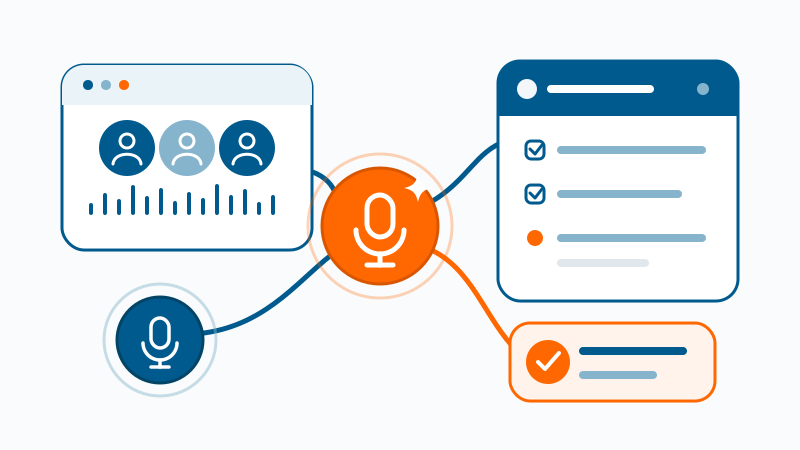
The Meeting Assistant transcribes your Teams meetings and calls, summarises them with AI and files the result in OneNote — decisions and action items included. From the action items it creates tasks, e.g. as Jira tickets. It starts by itself and delivers the note even when you can't record it in Teams yourself. And at the press of a button you capture a ticket or note by voice — no meeting needed.

Meeting Assistant turns meetings and voice input into structured notes and tasks

The difference

What sets the Meeting Assistant apart

Every meeting — whoever invited

When someone else hosts, you often can't record a Teams meeting yourself — and without a Copilot licence, not at all. The Meeting Assistant records the audio locally and delivers the note anyway. It starts and stops automatically, without you thinking about it.

The note is just the start

From the action items the assistant creates tasks — e.g. as Jira tickets — and files the note, well structured, in OneNote. The follow-up work that usually gets left behind is already done.

No meeting needed

With the start button the assistant becomes a dictation tool with follow-through: speak a ticket or note and it gets created. Technically it captures any audio from your PC — including soft phones and other VoIP tools.

How it works

From conversation to note and tasks

  1. 1

    Start the recording

    For any Teams call — meeting or direct call — fully automatic (start and stop). For soft phones, other VoIP tools or dictated tickets and notes, with a click.

  2. 2

    Transcribe

    The conversation is transcribed and speakers are matched to the participants.

  3. 3

    Summarise with AI

    An AI agent produces a structured summary: topics, decisions, action items.

  4. 4

    File and create tasks

    The note lands neatly in your OneNote — findable, shareable, searchable. The action items become tasks, e.g. as tickets in Jira.

The result

A note everyone can rely on

Summary

What it was about, in two or three sentences, plus the topics discussed and their key points.

Decisions

What was actually decided, clearly separated from mere discussion points.

Tasks

Who does what by when — as a table in the note and as a created task where you work, e.g. as a Jira ticket.

Full transcript

The complete conversation to expand, in case someone wants to check a detail.

Privacy by design

Recordings don't stick around

Audio is deleted

Once the summary is created, all audio is deleted automatically, mandatory and not switchable. Only the text note remains.

In your environment

Processing within your company's Microsoft 365 and Azure environment, with no third-party platform.

With consent

Set up within your data-protection and co-determination rules, participants know that notes are being taken.

Cost

Only what you actually use

Billed per use by actual usage — a fraction of the per-seat subscriptions of common meeting tools. No licence per head, no base fee for sitting idle.

Download

Download and install the application

Download the installer and follow the README to set it up. The README walks you step by step through getting the Meeting Assistant running.

Shall we show it on your meetings?

We set up the Meeting Assistant in your environment and demonstrate the value on real meetings.

Book a conversation